
Seedance 2.0 for deeper reference control
One model family covers text, first frame, first and last frame, and multimodal references for complex shots that need consistent subjects, motion, and camera direction.
AI Video Tool
Kuca's image-to-video AI generator turns a visual starting point into a moving shot. Animate a first frame, direct a transition with first and last frames, or use multimodal references when the model supports deeper creative control. Begin with a clear source image, separate subject movement from camera movement and compare supported settings before generating. Review the complete result for identity, product shape and continuity, then refine one instruction at a time so each new version has a clear purpose.
 First-frame animation
 Animate a defined composition


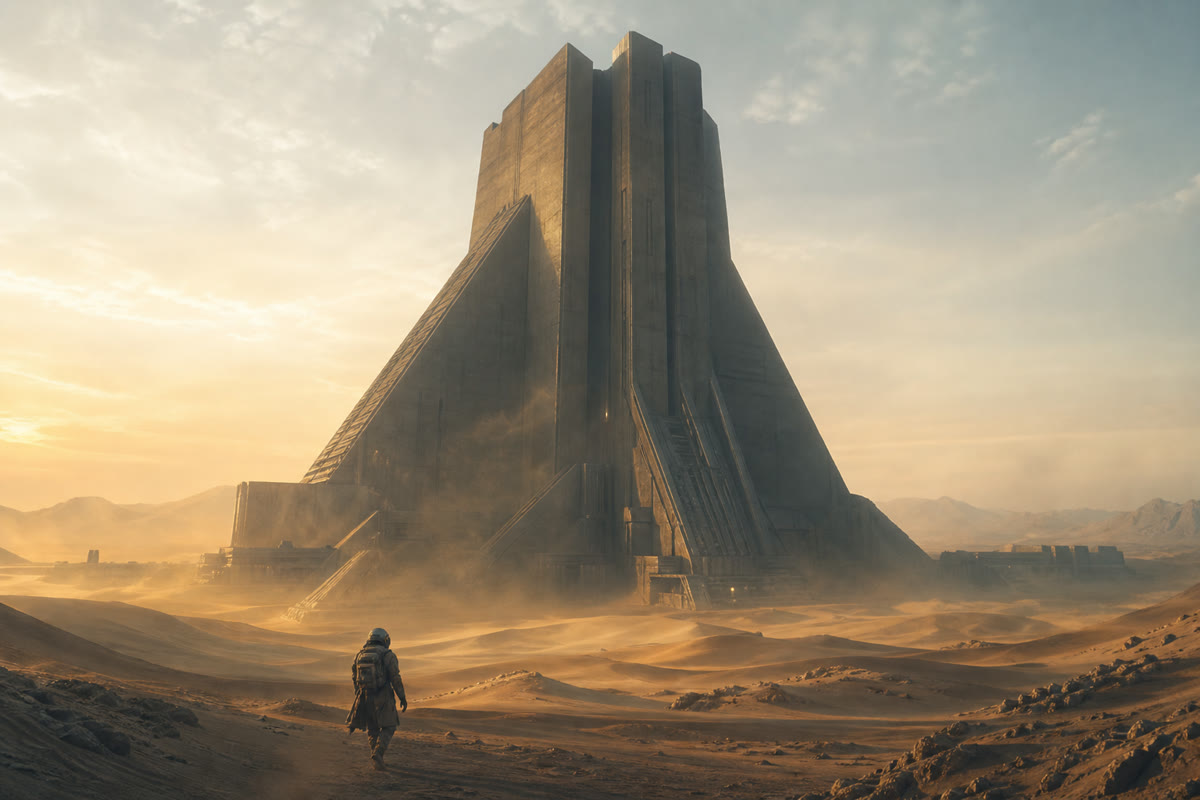
Use a first frame to establish the subject, framing, palette and scene before the model adds motion and camera behavior.
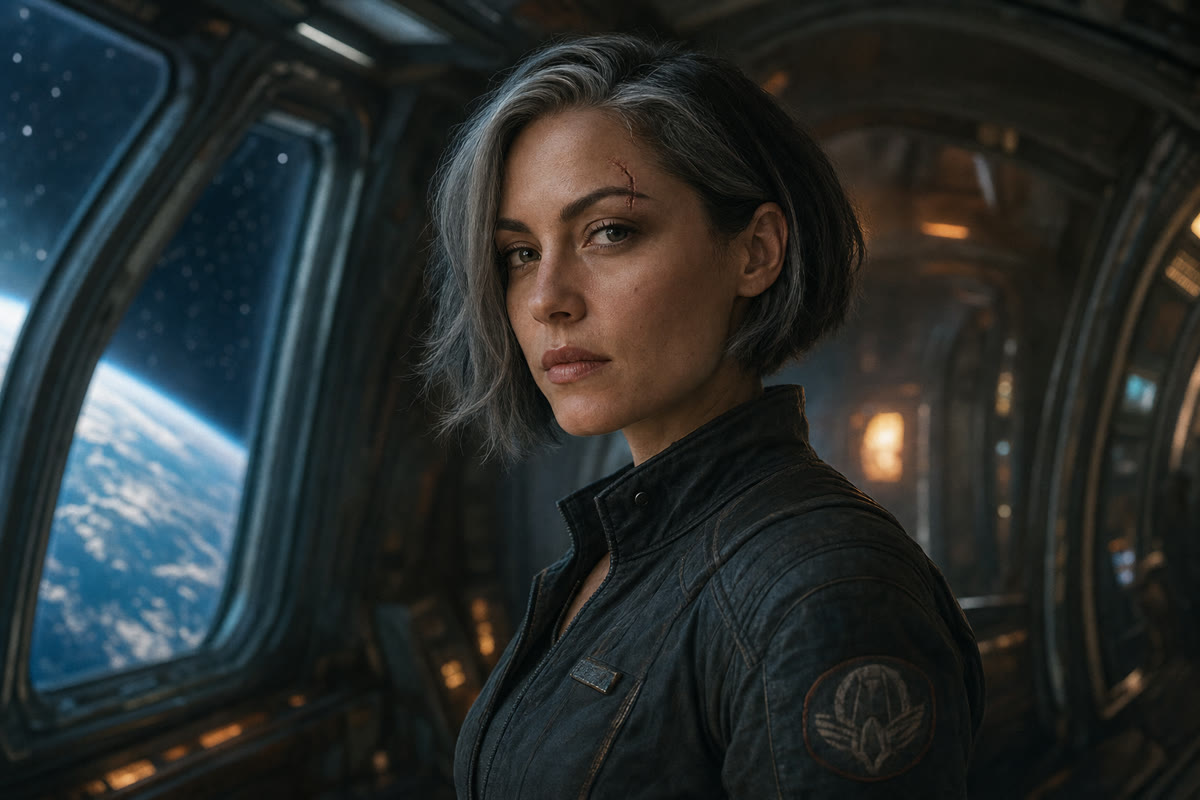
Add both first and last frames when a shot needs to move toward a specific pose, composition, reveal or visual transformation.
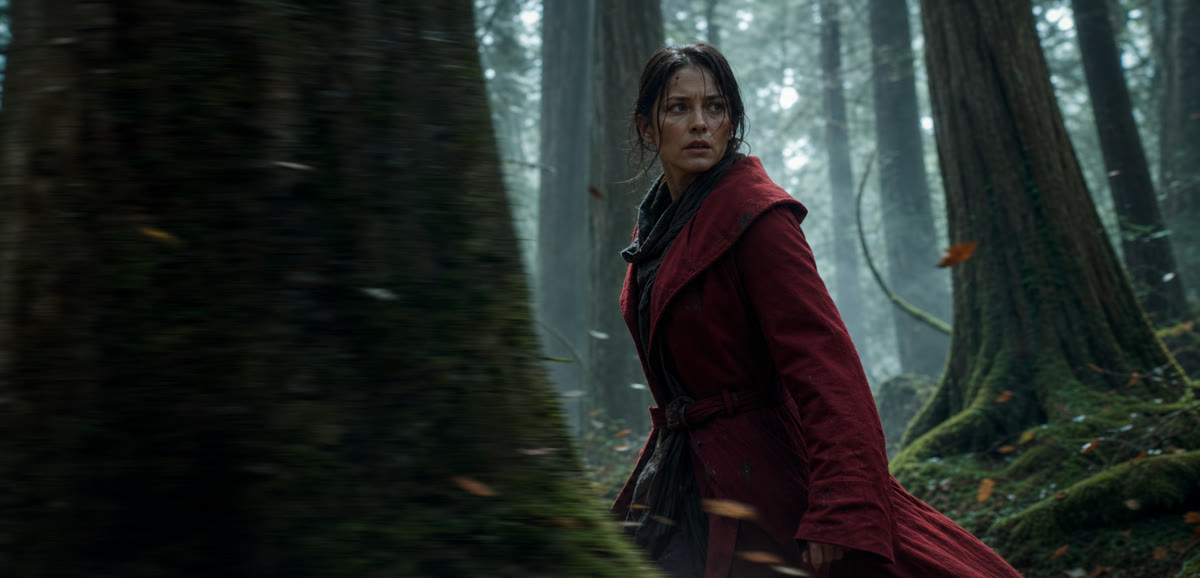
Compatible models can use additional image, video or audio references to describe identity, style, action and sound more precisely.
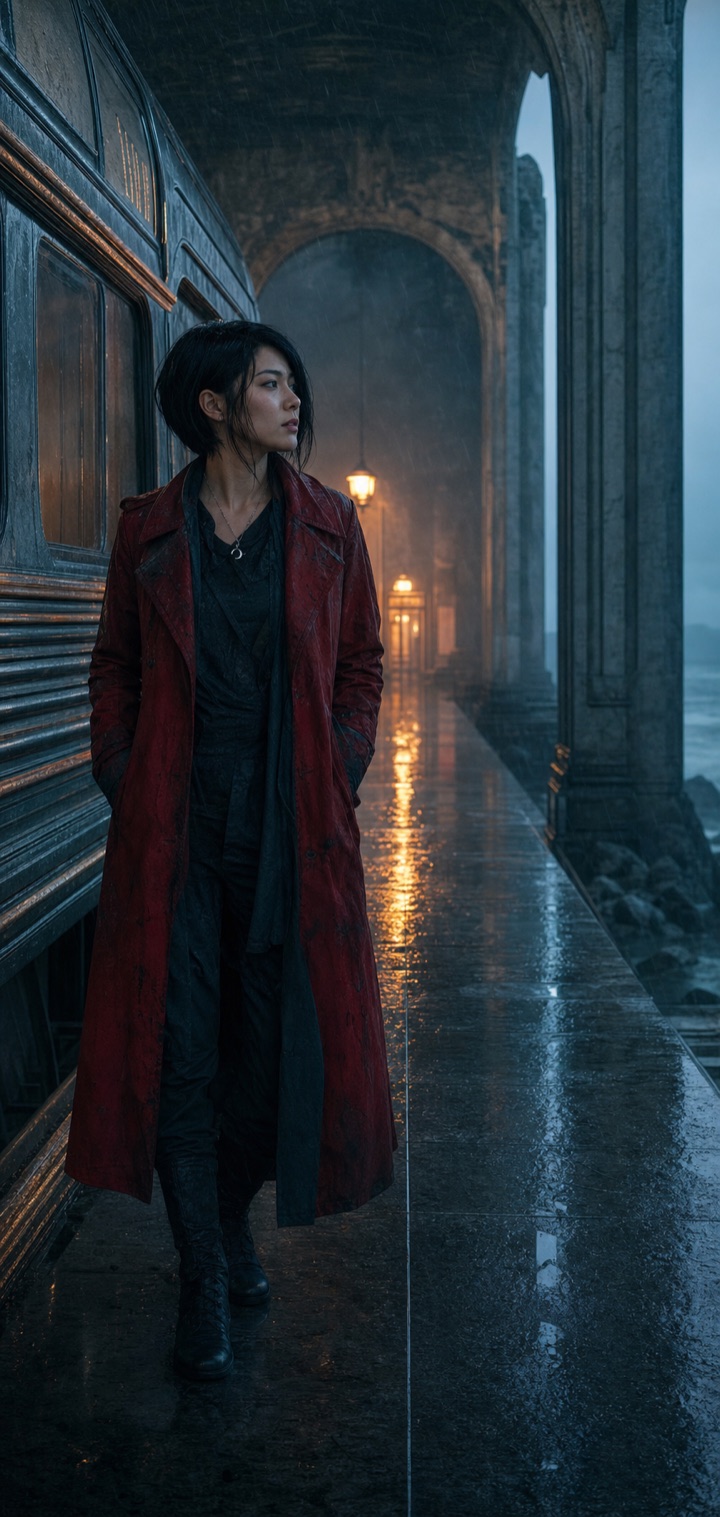
Keep outputs, prompts and model settings in generation history so you can refine motion without losing a successful visual baseline.
Image-to-video model comparison
One model family covers text, first frame, first and last frame, and multimodal references for complex shots that need consistent subjects, motion, and camera direction.
Veo 3.1 Lite starts at 24 credits while retaining text, frame control, multimodal references, audio, and up to 4K output. Move to Fast or Quality only when you need more.
Generate up to 15 seconds in one shot and define both the opening and closing frames for narrative beats, product motion, and directed transitions.
Hailuo 02 starts from 10 credits, while Hailuo 2.3 focuses on first-frame animation with Standard and Pro options for quality upgrades.
Keep the source image at the center of the workflow from upload to final generation.
Start with a clear first frame. Add a last frame for a directed transition, or additional supported references when identity, style or environment needs more guidance.
Use frame generation for first-frame or first-and-last-frame control. Choose Omni Reference when compatible models support a broader reference-driven workflow.
Explain the subject movement, camera action and ending behavior, select the available output settings, then generate and review the result.
Animate a product photo with controlled camera moves while keeping shape, materials and branding recognizable.
Add restrained expressions, gestures and camera motion to a defined person or illustrated character.
Bring archival photos, paintings and still illustrations to life without rebuilding the composition from text.
Turn architectural images and concept renders into guided reveals, walkthrough-style shots and presentations.
Common questions about animating images and using frame or reference control on Kuca.
Image-to-video AI turns a still image into a moving shot while using the uploaded picture as visual guidance. Depending on the selected mode and model, the image may define only the first frame, both the opening and ending frames, or a broader set of visual references. The prompt then directs subject movement, environmental motion and camera behavior. This workflow is useful when a character, product, composition or art direction already exists and should remain recognizable during animation.
Use a clear, sufficiently large image with the main subject easy to distinguish from the background. A clean composition, plausible body pose and visible details give the model stronger evidence for motion. Avoid severe compression, accidental cropping, unreadable text and conflicting perspectives unless they are intentional. Leave visual space in the direction the subject or camera should move. The source image sets appearance, while the prompt should explain the action rather than repeatedly describing every visible object.
Use a first-frame mode when you want the uploaded image to establish the opening shot and allow the model to develop the motion. Choose first-and-last-frame generation when both endpoints matter and the transition between them should be guided. Multimodal reference mode is intended for supported models that can use several assets or reference types. Kuca shows only the modes accepted by the selected model, so changing models can change the available inputs and controls.
Describe movement in small, physically coherent steps and separate subject motion from camera motion. For example, state that fabric moves in a light breeze while the camera performs a slow push-in. Excessive action, rapid viewpoint changes or instructions that contradict the source pose can cause warping. Begin with restrained motion, review the result and increase intensity gradually. If identity or product geometry is essential, keep the prompt focused and compare multiple models using the same source and similar settings.
Choose frames that share a compatible subject, scene geometry and visual style. The model must infer the transition, so extreme changes in identity, viewpoint or lighting can produce unstable movement. Describe the intended path between the frames instead of only restating their contents. With multimodal references, give each asset a clear purpose and avoid combining unrelated visual directions. Supported file inputs, reference counts and controls update in the form for the current model rather than being assumed across every provider.
Available settings depend on the chosen image-to-video model and mode. Kuca exposes only supported options such as duration, aspect ratio, resolution, quality and native audio. Match the output ratio to the source composition to reduce unnecessary cropping, and allow enough duration for the requested action. Generated videos remain in history with their prompt and settings, making model comparisons easier. Once a result is ready, you can open or download it according to your account permissions.
Upload a frame, choose the right control mode and create an image-to-video shot in the generator above.