
Seedance 2.0 for deeper reference control
One model family covers text, first frame, first and last frame, and multimodal references for complex shots that need consistent subjects, motion, and camera direction.
AI Video Tool
Kuca's text-to-video AI generator gives you one focused workspace for turning prompts into moving scenes. Describe the subject, action, camera, lighting and sound, then compare supported AI video models without rebuilding your creative brief.
Kuca's text-to-video AI generator gives you one focused workspace for turning prompts into moving scenes. Describe the subject, action, camera, lighting and sound, then compare supported AI video models without rebuilding your creative brief.
 Cinematic scene direction


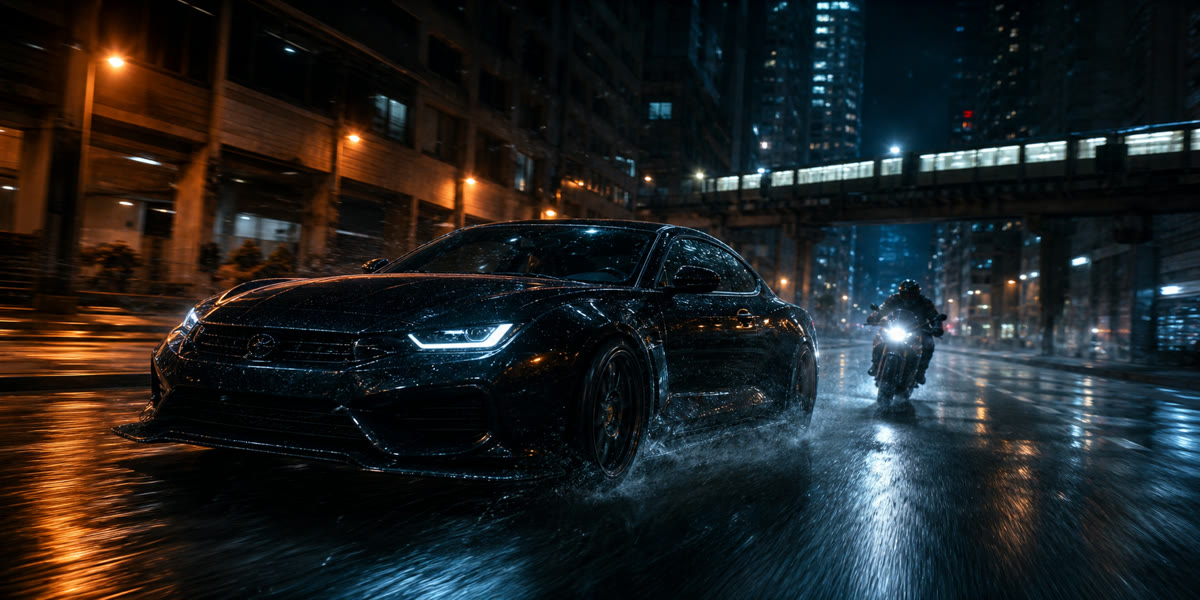
Prompt for composition, character action, lens movement, atmosphere and sound to shape a complete scene instead of a single visual concept.
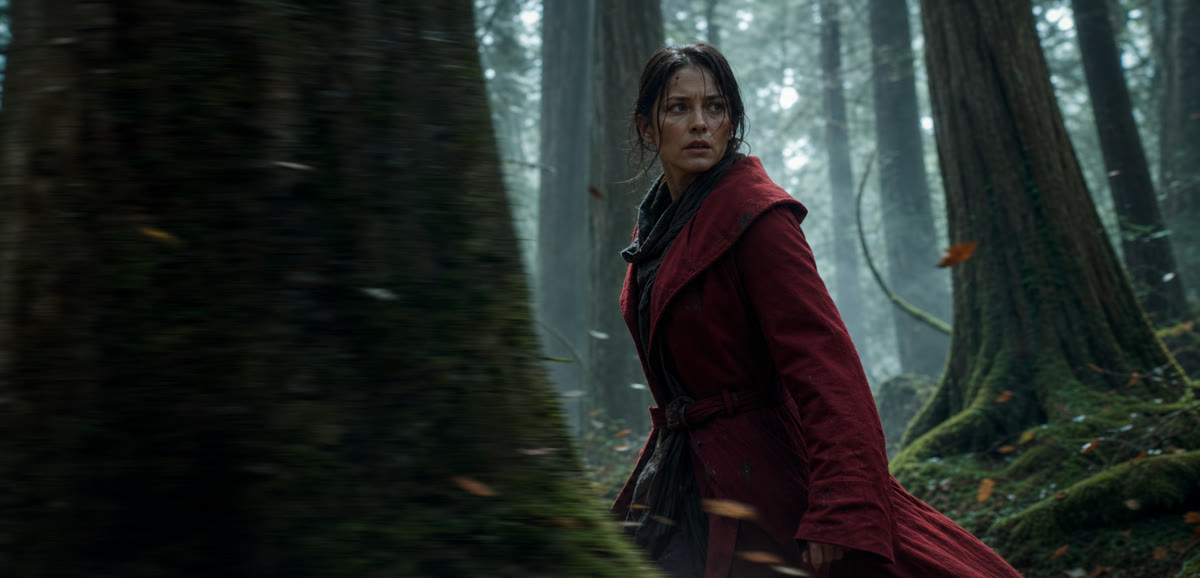
Use the same creative brief across compatible models and choose the option that best fits motion, visual style, speed or output quality.
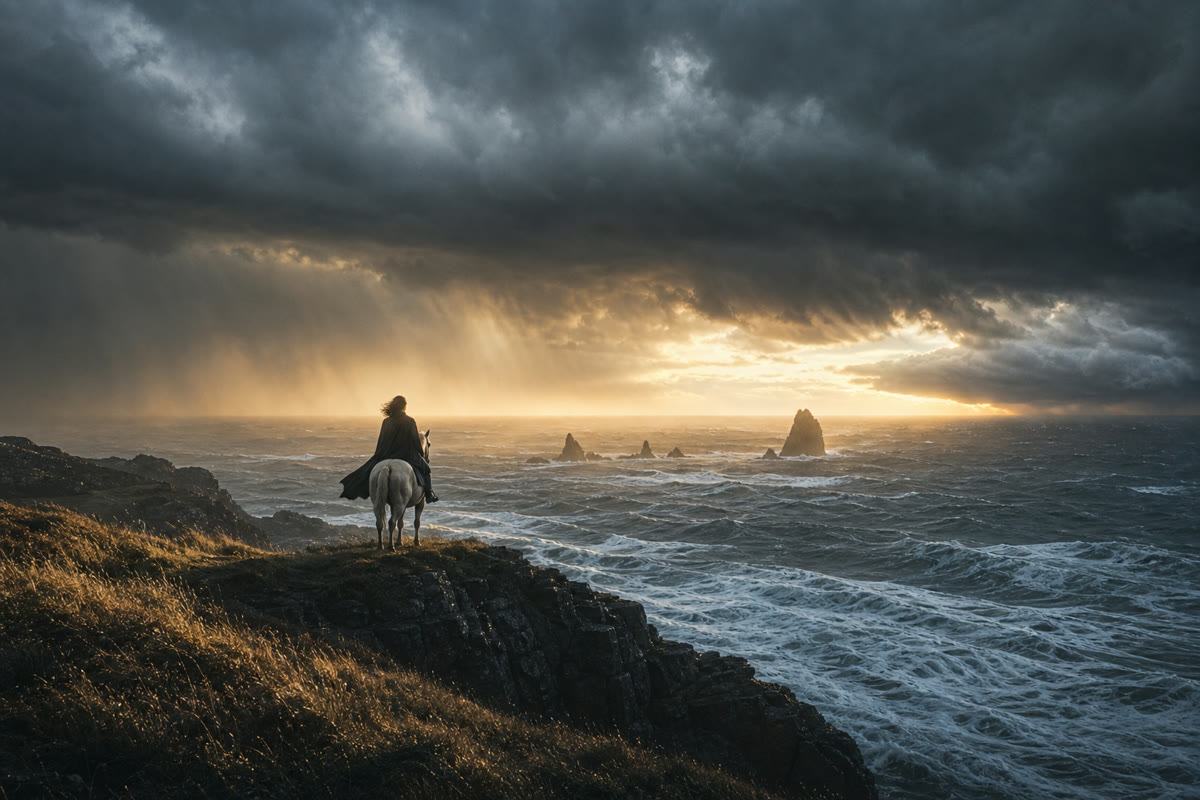
Set the supported aspect ratio, duration, resolution and audio behavior for films, short dramas, ads and vertical social videos.
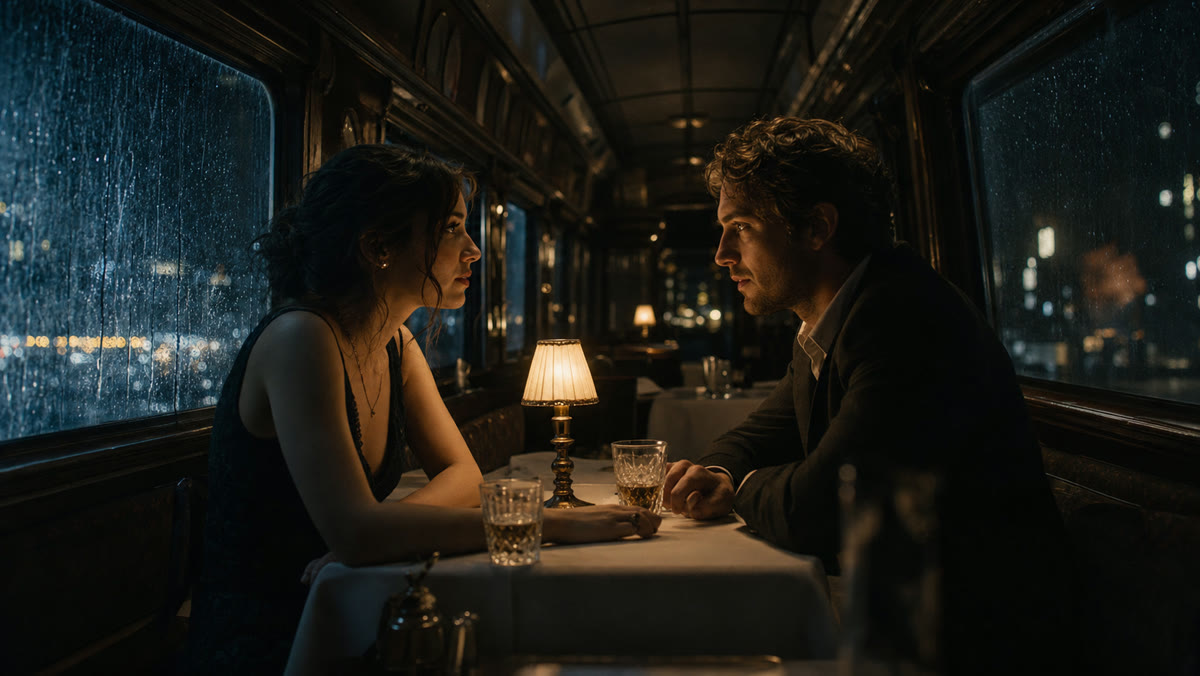
Return to earlier results, prompts and model settings so successful shot directions remain easy to compare and reproduce.
Text-to-video model comparison
One model family covers text, first frame, first and last frame, and multimodal references for complex shots that need consistent subjects, motion, and camera direction.
Veo 3.1 Lite starts at 24 credits while retaining text, frame control, multimodal references, audio, and up to 4K output. Move to Fast or Quality only when you need more.
Generate up to 15 seconds in one shot and define both the opening and closing frames for narrative beats, product motion, and directed transitions.
Create from text, images, or references and keep working with a dedicated video editor in the same family—ideal for iterating on existing material.
Move from an initial idea to a generated shot in three clear steps.
Describe who or what appears, what happens, where the scene takes place, and how the camera should move. Add lighting, style, dialogue or ambience when they matter.
Select a compatible AI video model, then adjust the available duration, aspect ratio, resolution and audio options for the shot you need.
Create the video, review it in your generation history, and keep the prompt and settings that work as the starting point for the next version.
Turn a written sequence into visual shot drafts before committing time and budget to production.
Create B-roll, explanations and narrative scenes directly from a lesson, voice-over or channel script.
Test alternate openings, actions and camera directions without preparing a source image for every idea.
Describe locations, characters and events that would be difficult or expensive to capture in a traditional shoot.
Common questions about creating AI videos from a written prompt on Kuca.
Text-to-video AI interprets a written prompt and creates a moving scene without requiring a source image. A useful prompt can define the subject, environment, action, camera position, movement, lighting and visual tone. The selected model then decides how those instructions appear over time. It works well for concept shots, advertisements, social clips, storyboards and visual experiments. Results still vary by model, so treat the first generation as a draft and refine the prompt when motion, composition or continuity needs more control.
Start with one clear subject in a specific place, then describe what happens in chronological order. Add shot size, camera movement, lighting, atmosphere and style only when those details support the scene. Concrete directions such as “the camera slowly tracks backward as the cyclist approaches” are easier to interpret than a long list of unrelated adjectives. Keep important actions compatible with the chosen duration, avoid contradictory camera instructions and place the details that matter most near the beginning of the prompt.
Choose according to the shot rather than assuming one model is best for every task. Compare the models currently available in Kuca for prompt adherence, motion, realism, speed, resolution and audio support. A fast model can be useful for testing composition, while a higher-quality option may suit a final cinematic shot. The form updates when you switch models, so only supported durations, aspect ratios, resolutions and reference controls are shown. Generate short tests with the same prompt when you need a fair comparison.
Describe a single readable action, a stable subject and a deliberate camera move. If a result changes identity, clothing or background unexpectedly, simplify the scene and remove competing events before adding detail again. Specify persistent characteristics once, use spatial language consistently and avoid asking for several cuts inside one short generation. Reviewing each result in history helps you identify which prompt or model kept the strongest continuity. For exact character or product appearance, an image-to-video workflow may provide more visual control than text alone.
The available controls depend on the selected model. Kuca only displays settings that the active text-to-video model accepts, which can include duration, aspect ratio, resolution, generation quality or audio. If a control is absent, that model does not expose it in this workflow. Match vertical ratios to mobile content, widescreen ratios to cinematic or presentation shots and duration to the amount of action in the prompt. Audio should be requested only where the chosen model supports native sound generation.
No image is required on this page; the generator is intentionally limited to text-to-video models and modes. Completed videos stay in the generation history so you can review prompts, settings and outputs side by side before choosing a result. You can then open or download an available output according to your account permissions. If the shot must begin from a specific photograph, end on a designed frame or follow several visual references, switch to Kuca’s image-to-video page instead of forcing those constraints into text.
Choose a model, describe the shot and start generating in the text-to-video workspace above.