
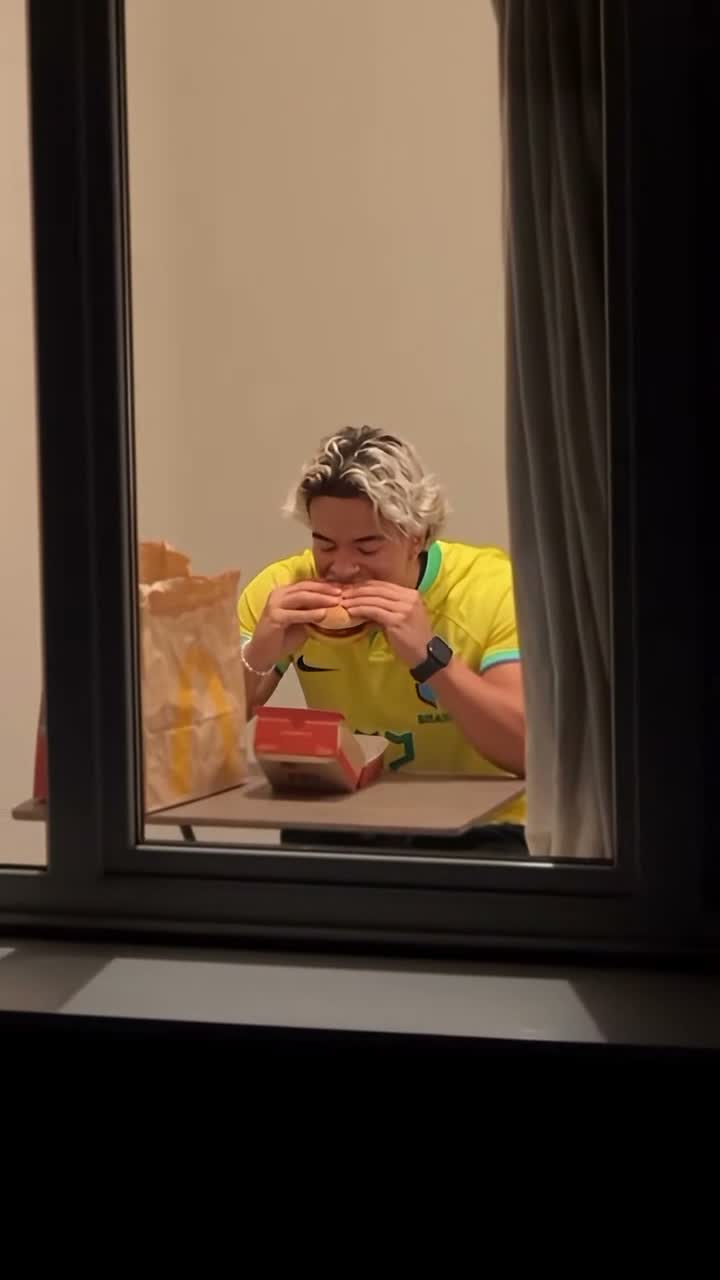
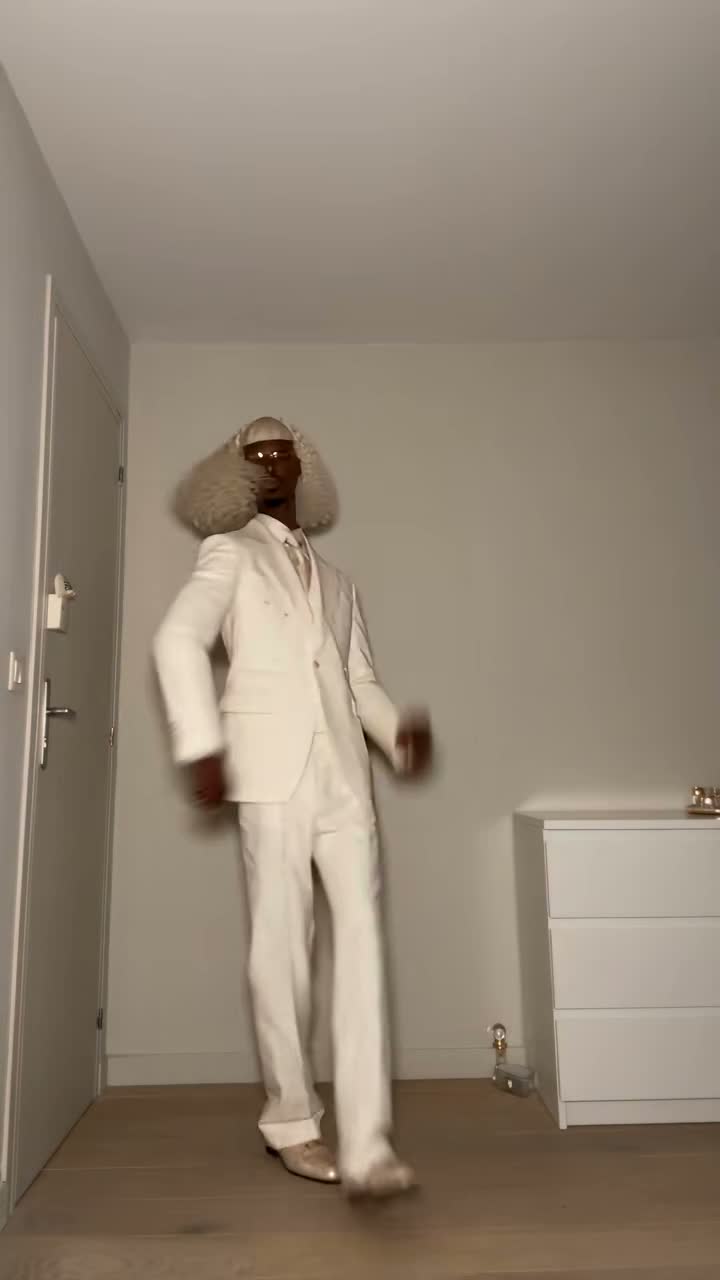
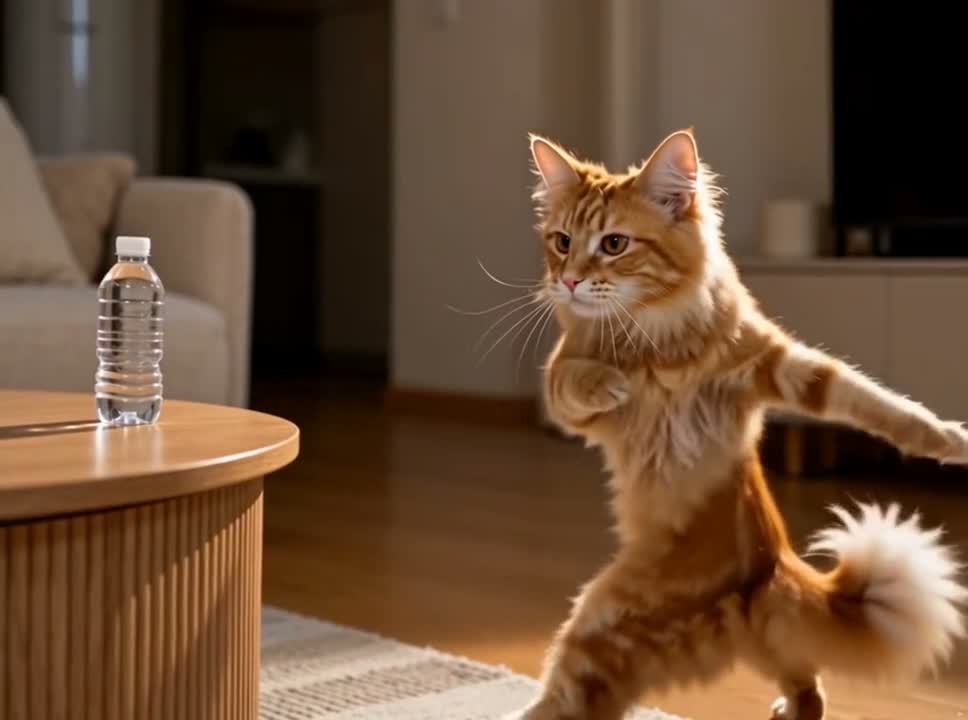
Kuca.ai
Loading
Skull Cap Trend AI
01Person or pet photo
Person or pet photo0/1
Aspect ratio
11s
100Credits
Remaining credits:
Public

Skull Cap Trend AI: one photo, two very different moods

A little hair fussing, a casual look at the camera, then the cap-and-hood switch. Skull Cap Trend AI puts your chosen person or pet into that change of attitude. Upload one clear photo and watch the reference beside the form: the same performer carries the joke from a white T-shirt to the black skull cap and grey hood.

How to make a Skull Cap Trend AI video

Choose the face; the reference supplies the performance.

  1. 1

    Upload one clear portrait

    Choose yourself, a friend who agrees to the edit, or a pet. Keep the face large, sharp and easy to see. A head-and-shoulders photo works well for this close-camera performance; you do not need a picture of the subject already wearing a cap.

  2. 2

    Watch the change of attitude

    Play the reference and look at both halves. Your photo replaces the one performer throughout, including the hair gestures before the cut and the cap-and-hood performance after it. The other two examples show different creators doing the trend.

  3. 3

    Keep the frame that suits your post

    9:16 starts selected for a phone-screen clip. 16:9 is also available if you prefer a landscape composition. Each generation costs 100 credits and produces a 720p MP4. Choose the framing before submitting, with room for the cap, eyes and hands.

  4. 4

    Generate, watch, then download

    Sign in and follow progress in Generation history. Play the result with sound and pause around the outfit change. Download the version you like before adding your own caption or choosing a sound in the app where you plan to post.

The cap is the cue; the attitude is the joke

A recognizable before-and-after

The meme exaggerates how someone starts acting almost immediately after putting on a skull cap. It is a change in confidence, expression and styling, rather than a literal stopwatch challenge. The relaxed opening gives the hooded reveal something to contrast with, so both halves matter when you choose a result.

Follow the actual reference

In the selected clip, @gavinncarey adjusts his hair in a white T-shirt, then appears in a fitted black cap and grey zip-up hood. The room stays recognizable. This template follows that sequence; it does not need an invented nightclub, a different location or a new cast to make the switch readable.

One subject across the cut

The same uploaded identity is used before and after the transition. You do not upload a second serious-looking face or a photograph of a hood. A clear portrait gives the model a useful identity to carry through the clothing change, while the video provides the gestures and timing.

Add your own line after reviewing

The original example has a meme caption. The generation instructions ask to remove that source caption, leaving room for your own wording later. Check the output for leftover letters before posting. A short caption that fits your friend group often says more than covering the face with a long explanation.

A photo that stays recognizable under the hood

01

Keep the eyes easy to read

Use a recent photograph with natural light on the face and visible eyes. Avoid sunglasses, heavy smoothing and hair that hides most of the features. The reveal brings a cap and hood close to the face, so a sharp source is more useful than a tiny face in a large holiday picture.

02

Choose a single person or animal

If your favorite picture is a group shot, crop to the intended subject before uploading. Keep a little space around the head instead of cutting through ears or the hairline. The reference contains one performer, and a single clear identity is easier to follow across the change of expression.

03

A pet can take the fictional role

For a dog or cat, show the face, ears and distinctive coat markings. The instructions ask for the animal’s own face, fur and paws while it follows the upright performance. You do not need to dress the animal or photograph it in an uncomfortable pose. Check paw movement as well as the final face.

04

Bring the picture from your phone

JPG, PNG and WebP are accepted, with a 20 MB limit per upload. Supported HEIC and HEIF photos are converted to JPEG during upload. Sign in before sending your file, or use Upload from phone if the picture is still on your handset. Wait for uploading to finish before generating.

Three ways to change the mood

A cap, a hood and a different look at the camera. Watch how three creators make the switch; the first clip is the one your photo will join.

TikTok · @gavinncarey

From fixing your hair to a cold stare

He fusses with his hair in a white T-shirt, then returns in a black cap and grey hood with a much more serious look. The sudden change of attitude makes the joke. Your photo takes his place in this clip.

Generate video
TikTok · @rayneonlymain

Same face, a whole new attitude

Loose hair and a relaxed expression give way to a fitted cap and dark hood. Watch the eyes and the way she holds her head: the expression does as much as the outfit.

Generate video
TikTok · @samaraispinkk

Cover the lens, change the mood

A smile in a red top, a hand over the camera, then a black-cap reveal. Hiding the change for a moment makes the new look feel like a surprise.

Generate video

Choose the crop around the face and hands

Vertical follows the source layout

The selected reference is vertical, and 9:16 is the default for a Reel, Short or TikTok. Keep the hair gesture, cap and hood inside the picture. A good thumbnail is useful, but the whole sequence should remain readable when the hands move closer to the lens.

Landscape changes the composition

Select 16:9 when you need a wider presentation. Moving a vertical performance into a landscape frame can change the framing, so inspect the top of the cap and the sides of the hood. The face should remain large enough to recognize even when you watch the clip at the size of your final post.

Keep decorations away from the reveal

If you add a sticker or caption afterward, leave the eye line and the hand movements clear. The audience needs to see the switch in expression. Place text in a quiet area and watch the clip again after editing, since a caption that looks fine in one still can cover the subject a moment later.

Save the clean working version

Download the MP4 before experimenting with cover images, captions or social crops. Keep a copy of the version you like so a presentation change does not require another generation. The available output is 720p; judge small details at the downloaded size as well as in the preview.

Make a small edit without changing the whole performance

01

Let the reference handle the movement

The prepared prompt connects the one photo to the one performer. It keeps the hair gesture, cut and cap-and-hood reveal together. If you edit the prompt, keep those basics intact. Asking for a different dance or several additional people would move the request away from the effect shown beside the form.

02

Appearance and wardrobe have different jobs

Your photo provides identity, while the reference supplies the outfit change. You can start from a normal portrait without matching the white shirt or grey jacket. Watch whether the face remains recognizable in both looks rather than expecting the clothing in your source photograph to appear unchanged throughout the video.

03

Listen before choosing your soundtrack

The model is asked to keep the reference audio as closely as it can. Listen to the returned clip before downloading, especially around the transition. If you want a particular sound for a post, use the destination app’s music options and align it to the reveal after choosing your video.

04

Try one change at a time

For a second attempt, keep the useful parts of the first request and change one thing, such as the portrait or the crop. That makes the difference easier to judge. A clearer source photo can be a better adjustment than adding more and more appearance instructions to an already long prompt.

Credits, Public and Private

  • Know the cost before submitting

    Each generation costs 100 credits. Browsing the page, watching examples and preparing a photo do not spend generation credits. A task marked failed returns its 100 credits; generating another completed variation is a new paid request. Wait for the current task to finish instead of submitting duplicates while it is processing.

  • Choose who sees your creation

    Free-account generations use Public. Paid access enables Private and downloading without Kuca’s added watermark. Choose the setting before submitting, especially for a friend’s photo or a draft you do not want in the public feed. Private controls publication on Kuca; share a downloaded file or its link only with the people you intend.

Give the finished clip one complete watch

  • Check identity on both sides of the switch

    Look at the opening face, the moment of transition and the hooded ending. Compare the eyes, hairline or fur markings with the uploaded photo. For a pet, also check the ears and paws. A striking final frame is less useful if the opening seems to show a different subject.

  • Keep a version you can come back to

    Generation history keeps the task and its settings. Use Reuse parameters to bring them back, then review the photo, prompt, duration and ratio before a new submission. Download your chosen result and keep it with the project. Posting still happens in the app you choose; Kuca does not publish the clip for you.

Using the template

The single performer in the reference: both the white-shirt opening and the black-cap, grey-hood ending. There is one upload slot because both looks belong to the same subject.


The default is 11 seconds, using a reference of about 10 seconds. You can choose 4–15 whole seconds. Keep enough time for the opening and reveal; a shorter request can omit the end of the performance.


Each generation costs 100 credits for a 720p result. Preparing the request is free. A task marked failed returns the charged 100 credits.


Yes, you can try one clear pet photo. The prompt asks for the animal’s own face, fur and paws while following the upright reference performance. Review the movement before sharing.


No. A clear normal portrait is enough. The reference provides the cap, hood and change in outfit; your photo defines who takes the role.


It is visible in the source example. The prompt asks to remove it from the generated result. Check for leftover lettering before adding your own caption.


The model will try to retain the reference audio. Listen before downloading. You can choose a platform sound later if you want a particular soundtrack for your post.


Paid access enables Private and downloads without Kuca’s added mark. Free-account generations are public. Set visibility before submitting.


Yes. Your photo does not need to match the final expression. Choose a clear, recognizable face and let the reference guide the change of mood and outfit.


Use Reuse parameters in Generation history, review the restored settings and submit a new request. Another completed generation costs 100 credits.