
Kuca.ai
Loading
Stones to Castle AI
01Builder’s portrait
Builder’s portrait0/1
Aspect ratio
15s
100Credits
Remaining credits:
Public

Stones to Castle AI: turn their stones into your story

The crowd throws stones. You pick them up and build something they did not expect. Stones to Castle AI uses your portrait to create a cinematic comeback story: a lone protagonist gathers the stones, raises a wall and ends up looking out from a magnificent castle. Upload one clear photo above and use the example as inspiration for your own version.

How to make a Stones to Castle AI video

One portrait gives the builder a new face. The scene is already prepared.

  1. 1

    Choose the person who builds the castle

    Upload a sharp portrait of yourself or someone who agrees to the edit. Use one visible face with the eyes and hairline clear. A normal photograph is enough: you do not need to hold a stone, wear a red suit or stand beside a real castle.

  2. 2

    Use the example to picture the story

    Watch the idea unfold beside the form: a crowd throws stones, the protagonist gathers them, a wall grows into a castle and a confident smile closes the story. Your photo defines the leading character. The generation creates a similar scene with its own crowd, camera compositions and transitions.

  3. 3

    Keep the picture suited to your post

    The default vertical frame follows the reference and suits a phone screen. Landscape is also available. Leave the initial settings for a first attempt so you can judge the face and the story together. The price is shown beside the generation button before you submit.

  4. 4

    Generate, watch and save your version

    Sign in, submit the photo and follow the task in Generation history. Watch the finished clip from beginning to end, including the wide castle shot. Download the MP4 you like before adding a personal caption or choosing music in your social editor.

A comeback told through actions, not a long caption

Give the opening a reason to matter

The crowd sets up the contrast between hostility and a calm response. The protagonist turns the stones into building material instead of throwing them back. The new scene can use different people and gestures while keeping that conflict clear, so the audience understands why the first stone matters.

The small action makes the big reveal work

Picking up a stone connects the first scene to the castle. Watch that movement as well as the architecture: a hand closing around a rock and a wall taking shape make the ending understandable. The effect is more than a beautiful building appearing behind an unrelated portrait.

Keep your protagonist recognizable

Your portrait anchors the main character while the setting grows from a hillside into a castle. Compare the face and hair during the stone pickup, the construction and the ending. The red suit and black top belong to the example; your version can use a different look suited to its protagonist.

Make the meaning personal after the edit

The image can stand for a project you finished, a fresh start or a small win after a difficult stretch. Choose a caption that sounds like you. A short line gives the viewer room to read the action instead of making them work through a paragraph over the castle.

Choose a portrait that works in a wide scene and a close-up

01

Start with a clear face

A well-lit face with visible eyes is useful for the final window shot. Avoid deep shadow across half the face, sunglasses and heavy smoothing. You can use a head-and-shoulders portrait or a larger photograph, provided the face remains sharp when you look at it closely.

02

Crop a group photograph to one person

If your favorite picture includes friends, crop to the intended protagonist before uploading. Keep some space around the hair and chin. One clear face gives the story a recognizable lead. The surrounding crowd is generated as part of the scene, so it does not need photographs of your friends or a separate cast list.

03

Keep accessories simple for a first attempt

A large hat, a hand covering the mouth or a phone in front of the face hides details the model needs. Start with an unobstructed portrait and compare the eyes, face shape and hair across the returned shots. Use a more elaborate look only after you have a useful starting version.

04

Bring the photo from your phone

JPG, PNG and WebP images are accepted up to 20 MB. Supported HEIC and HEIF photos are converted during upload. Use Upload from phone if the portrait is on your handset. Wait until the upload finishes and check the thumbnail before submitting the generation.

Watch the stones become something bigger

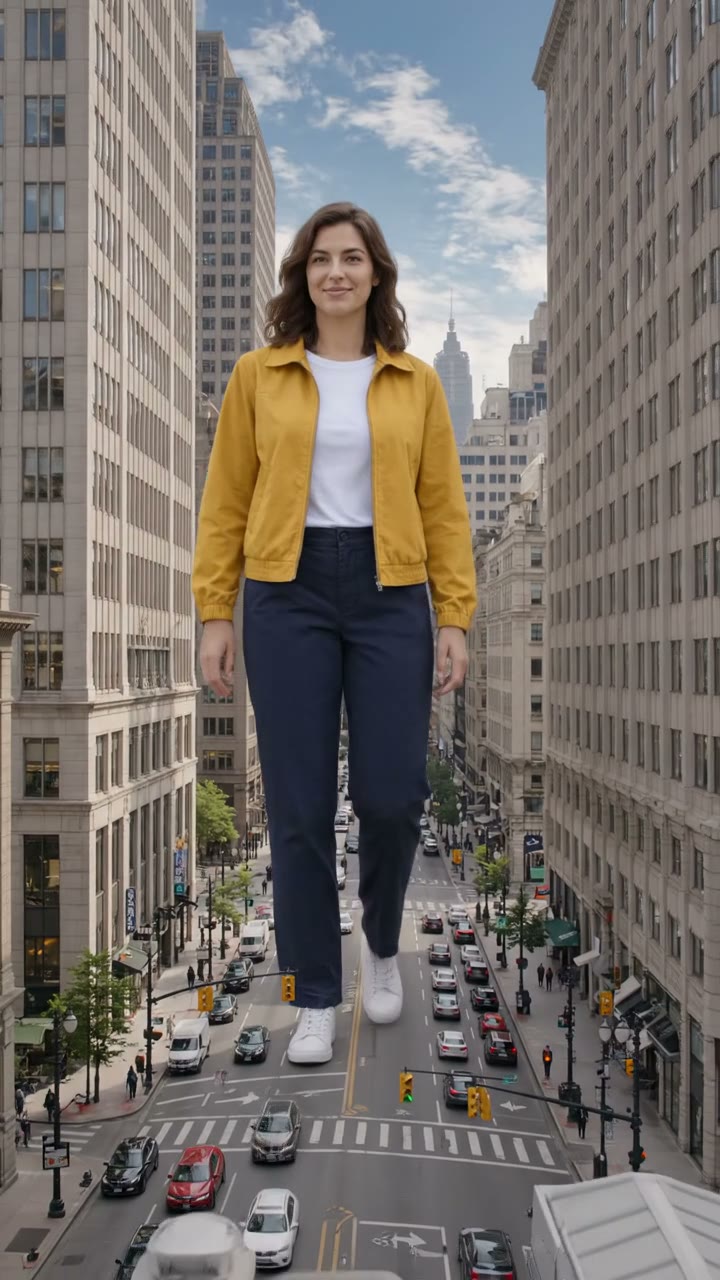
Three creator takes on the stones-to-castle idea. They show the story and visual mood that inspire your generation.

Instagram · @bognina_anastasia_

From the hillside to the castle window

A quiet builder in red turns the crowd’s stones into a wall, then looks out from a towering castle. This version shows the story arc; your portrait leads a newly generated interpretation.

Generate video
Instagram · @arezuglp

A quiet answer in a burgundy gown

A stone wall separates the crowd from a woman in a flowing burgundy gown. She sets the stones in place, the castle rises, and the last shot returns to her smile at the window.

Generate video
Instagram · @design.yamini

From a silver dress to the castle steps

A silver-gown version follows the stones from the grass into a rising wall. The camera pulls back to reveal the castle and the protagonist on its steps, facing the crowd below.

Generate video

Frame the builder and leave room for the castle

Vertical follows the reference

9:16 keeps the tall castle and window above the hillside, following the source composition. It is a useful starting frame for a Reel, Short or TikTok. Watch the whole clip at phone size so the person remains recognizable when the camera pulls away from the wall.

Landscape gives the valley more space

16:9 changes the composition of a vertical reference. Review the castle roof, the window and the builder near the edge of the frame. A wider picture can suit a presentation or a horizontal post, but the important action still needs to stay easy to see.

Keep your caption clear of the hands

The stone pickup and the work behind the wall carry the middle of the story. Put a caption in a quiet part of the image rather than over those movements. Check its position during the castle reveal too; the camera changes distance, so one still does not show every overlap.

Download before making social edits

Save the chosen MP4 and keep it as your working copy. Then try a cover frame, a caption or a small crop in your publishing app. The output is 720p, so review the downloaded file at that size before deciding whether small facial details or stone edges need another attempt.

Keep the portrait and the performance doing different jobs

01

Your photo supplies the identity

The prepared instructions use the portrait for the builder’s face, hair and recognizable features. The photograph’s pose and background are not the scene plan. You do not need to stage the stone pickup yourself; choose a source where the person is easy to recognize.

02

Keep the story connected

The reference guides the broad journey from thrown stones to a finished castle. Keep that progression when adjusting the prompt, while allowing the camera, architecture and small actions to develop naturally. A clear link between picking up the stones and building the wall matters more than copying the example’s exact cuts.

03

Listen for a build that suits the reveal

The prompt asks for music and stone sounds that support the dramatic opening and calm ending. Play the finished video with sound and check how it moves through the construction. If you prefer a particular song for publication, choose a track in your social editor after selecting the version you want to share.

04

Change one thing for the next attempt

A clearer portrait or a different crop is easier to evaluate than several new instructions at once. Keep the useful part of your first request and make a focused adjustment. Compare the same moments in both clips: the builder holding a stone, the wall and the window close-up.

Credits and who can see your video

  • Each generation costs 100 credits

    Watching the examples and preparing your portrait do not spend generation credits. A submitted generation costs 100 credits. If the task is marked failed, those credits are returned. Another completed variation is a new generation, so wait for the current attempt to finish before submitting a duplicate.

  • Choose Public or Private before submitting

    Free-account generations use Public. Paid access enables Private and downloads without Kuca’s added watermark. Set visibility before generating if this is a personal portrait or an early draft. Private controls publication on Kuca; once you download the file, you choose where it is shared.

Watch the ending as carefully as the opening

  • Compare the face in several shots

    Check the builder when kneeling, working behind the wall and smiling at the window. The clothes change, but the face should remain connected to the uploaded portrait. Also look at the hands around the stone and the wall, since those details help the actions read naturally.

  • Save a version you can return to

    Generation history keeps the task and settings. Reuse parameters brings them back for another attempt; review the photo, prompt, framing and duration before submitting again. Keep the downloaded version you like with your project so changing a caption later does not require another generation.

Before you build your first castle

Your portrait defines the protagonist’s face and recognizable features. The example guides the valley setting and the journey from stones to castle. The model creates a similar story with new shot compositions, background people and details.


The default result is 15 seconds, covering the prepared story from the crowd to the window. You can choose 4–15 seconds, but a shorter request may stop before the castle or final portrait. Keep the default if you want the full sequence.


Each generation costs 100 credits. You can watch examples and prepare a photo without spending generation credits. A task marked failed returns its credits; a new completed variation uses another 100 credits.


No. Choose a clear portrait for a recognizable face. The red suit is part of the example, rather than a required outfit for your version. You can describe a preferred outfit in the prompt while keeping the same protagonist throughout the story.


Use one portrait for the leading character. Crop a group photo to the person you want before uploading. The surrounding crowd is generated with the scene and does not need extra portraits.


Yes. You can adjust the setting, outfit or castle style in the prompt. Keep the crowd, stone pickup, building and confident ending connected so the comeback remains easy to follow. For a completely different story, try a general video creation page.


Audio is enabled. The prompt asks for music and stone sounds to accompany the new scene; it does not require the example’s exact soundtrack. Listen to the finished video before posting, or add a song in your social editor afterward.


Paid access enables Private and downloading without Kuca’s added watermark. Free-account generations use Public. Choose the setting before submission, then share the downloaded file only where you intend.


Open Generation history and select Reuse parameters. Replace the photo, review the settings and submit a new generation. You can keep the same framing to make the two results easier to compare.