

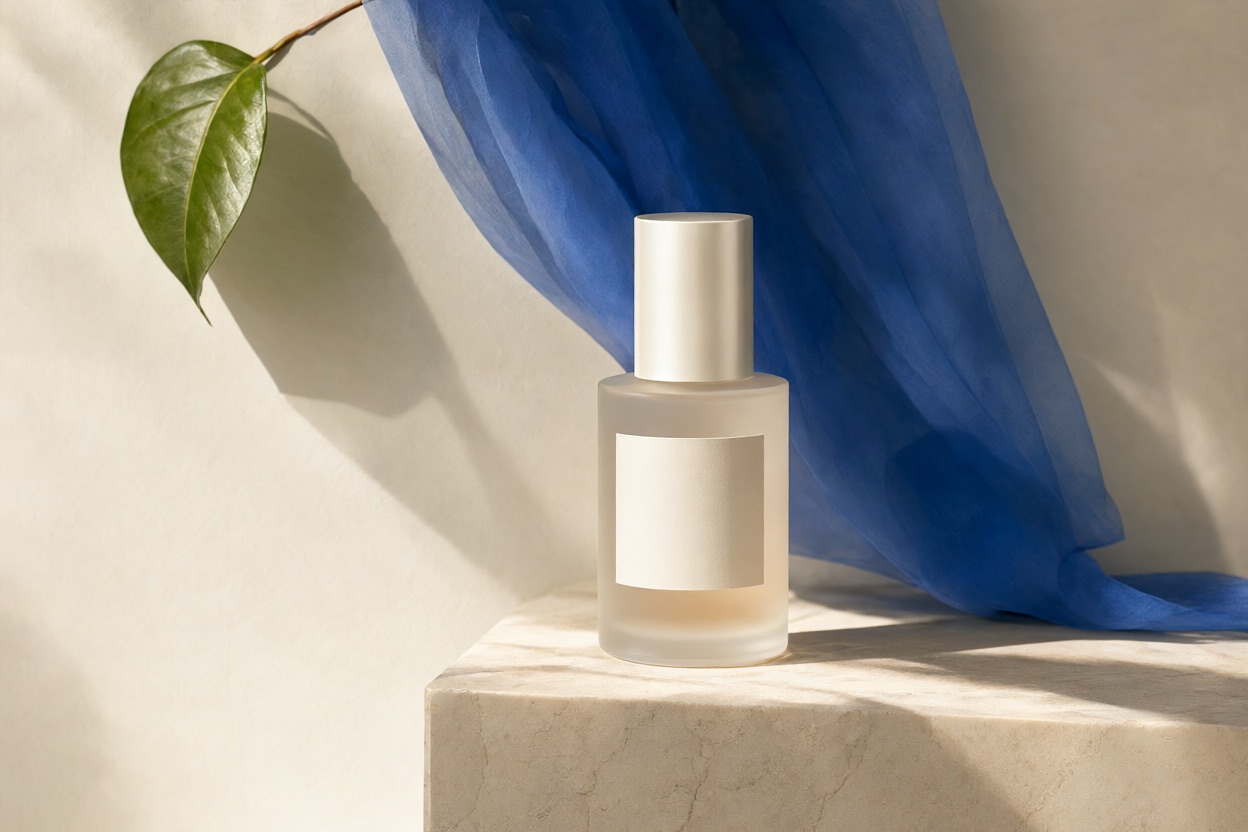
P-H3-Image for photographs, illustrations and precise edits
P-H3-Image is an image generation and editing model that Pruna built on MiniMax H3 open weights. Use this workspace to prepare an image description or arrange references for an edit. Explore documentary photography, printed artwork and carefully directed changes to an existing scene. Choose a mode, review the credit cost and generate. Your results appear in the history beside the form.
Official P-H3-Image examples
These images come from the model developer. Compare the visual styles, the editing example and the written prompt; they are not results generated on Kuca.
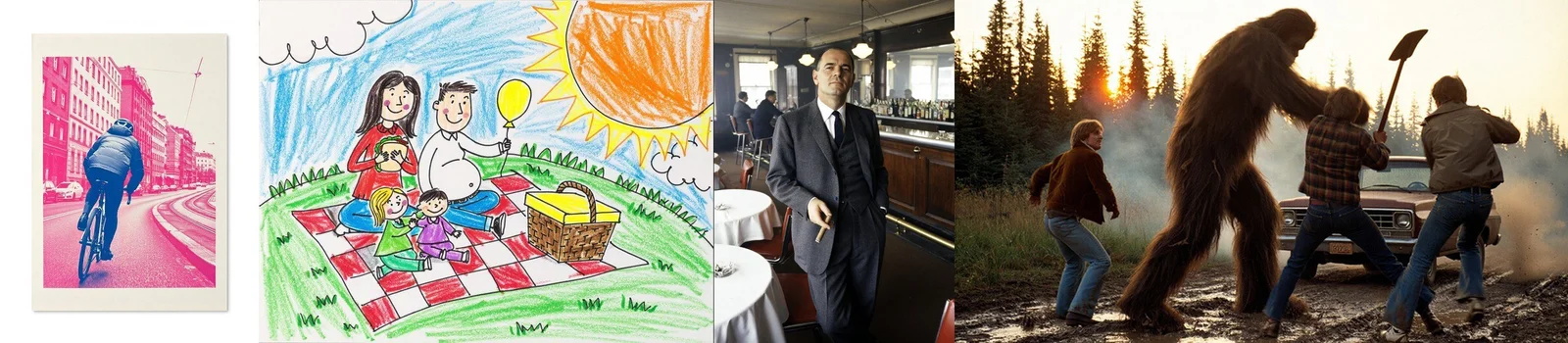
One model, several visual languages
The developer compares printed illustration, drawing and photography in one style sheet. Pruna · Official model card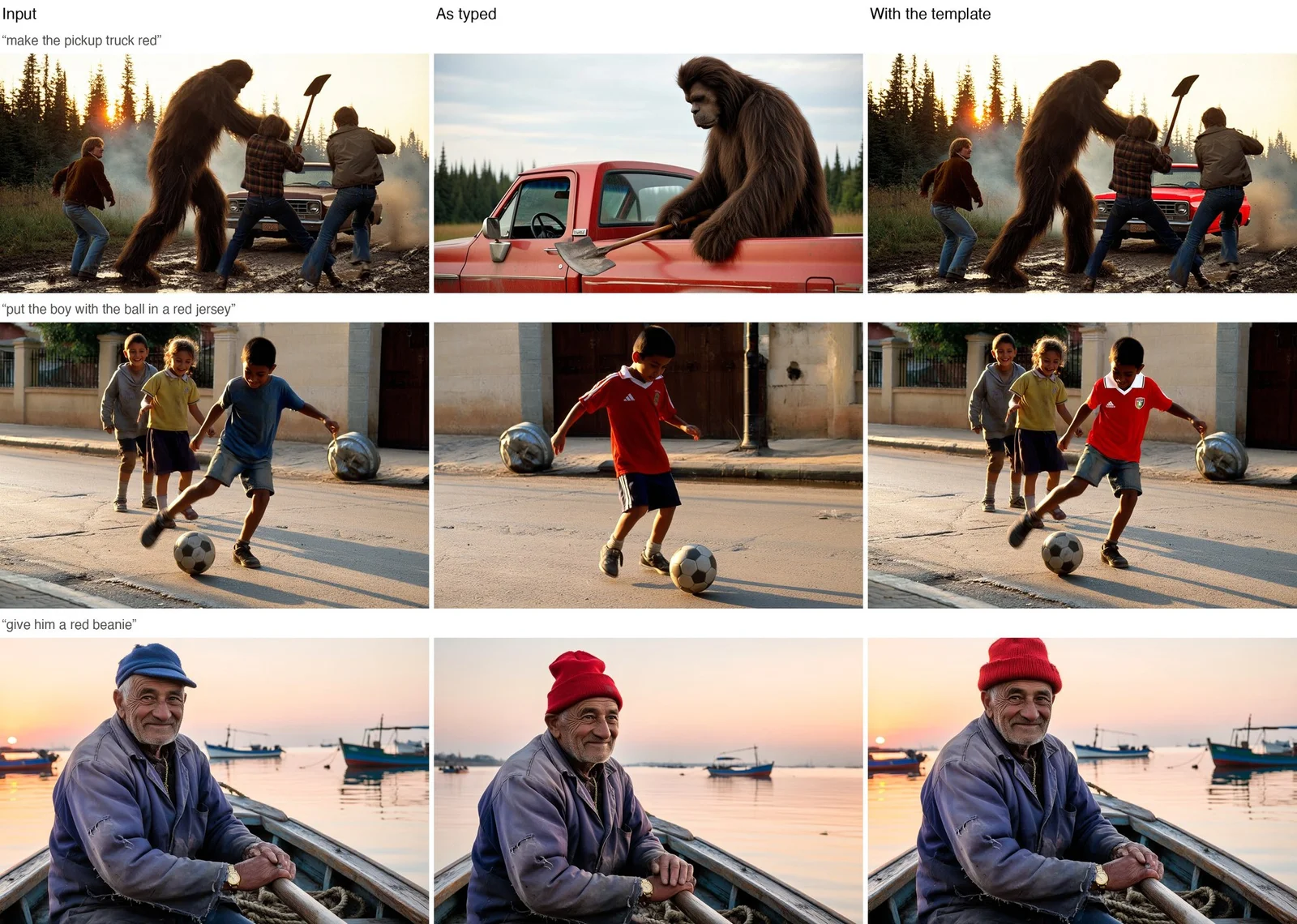
Describe a change and what stays
Compare the brief request with a more explicit instruction that also names the parts to preserve. Pruna · Official model card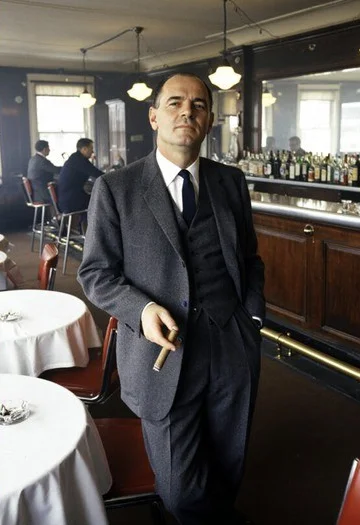
Photography with a natural viewpoint
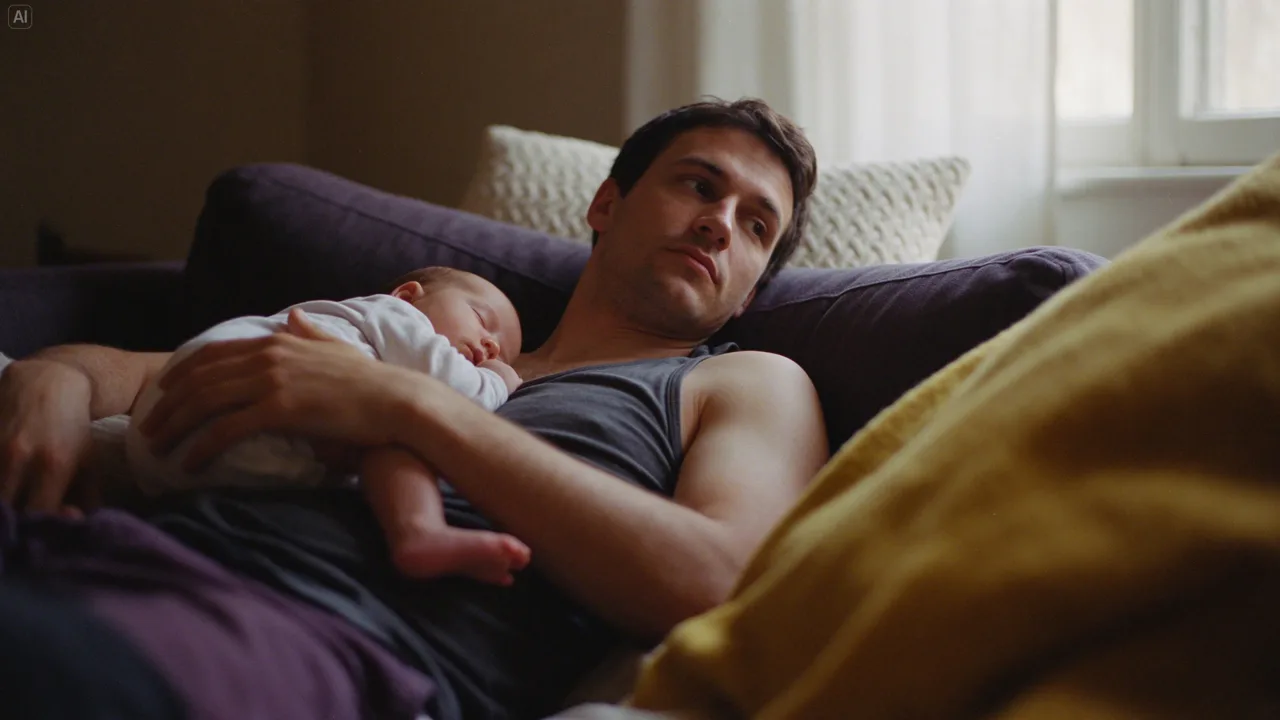
A crop from the developer’s style demonstration, showing photographic lighting and an everyday interior. Pruna · Official model cardPrepare a P-H3-Image request
Describe the finished image
Choose text-to-image and write the subject, viewpoint, light and intended layout. Start with one scene and a small number of important details.
Arrange references for an edit
Switch to image editing and put the picture to change first. Follow it with references, then explain what to borrow and what to preserve.
Set framing and output
Choose an aspect ratio, resolution and file format. A fixed seed is useful for controlled comparisons, although settings changes can still alter the composition.
Generate and review the result
Check the credit cost, then submit. Open the finished image in your history and compare important details before downloading it.
Plan your image with P-H3-Image
What the P-H3-Image model actually makes
P-H3-Image can turn a written brief into a new image or use reference pictures to guide an edit. Describe the scene you want to create, or explain which parts of an uploaded picture should change and which details should stay. The published examples cover realistic photography, illustrated scenes, print-like artwork and edits based on reference images. Start by choosing the kind of finished object you want: a product photograph, a magazine illustration or a poster draft. That choice gives the prompt a useful direction before you add colors, materials and lighting. Treat the samples as evidence of possible styles, not a guarantee that every request will match them.
Give P-H3-Image generation one clear scene
A useful description explains what the image is, where the viewer stands and which subject matters most. For a café photograph, mention a cup near the front edge of a small table, a window on the left and a softly blurred room behind it. That is easier to evaluate than a list of impressive-sounding adjectives. Keep the number of important objects manageable and describe their relative positions. If the cup must leave room for a headline, say where that empty area belongs. After a first result, change the weakest part of the instruction rather than replacing the entire brief with another long list of styles.
References and editing instructions
Edit the first image and explain what must stay
For a P-H3-Image edit, put the image to change first. Additional pictures act as references for a subject, accessory or visual treatment. Name the source of each detail plainly, such as the bag in the second picture or the jacket color in the third. Then describe the finished change and the parts that must remain: the person's face, the camera position, the existing furniture or the daylight. The model developer warns that short edit requests can redraw more of a scene than intended. A preservation instruction helps communicate the goal, but you should still compare the output carefully before using it as a finished asset.
Framing and resolution
Choose a frame for the place the image will live
A portrait layout suits a phone feed or a full-height character, while a landscape frame gives an environment more room. Square framing can work for a product tile, but it may leave little space around a tall bottle. Choose the composition before judging tiny details. Switching the ratio later can move the subject, change the crop or introduce extra background, even with the same seed. The preparation controls include square, portrait, landscape and wider formats. Check the intended publishing area, including any interface overlays, and describe useful empty space as part of the composition instead of assuming an automatic crop will preserve everything.
Resolution is a creative choice as well as a file size
The documented hosted interface offers 1K, 1.5K, 2K, 3K and 4K tiers. These labels are provider settings; they are not a promise that every aspect ratio produces the same pixel dimensions. The model developer separately recommends roughly eight-megapixel compositions for its own pipeline and notes more artifacts at lower sizes. Use that information to plan a fair comparison. A small draft can help evaluate an idea, but a larger version still needs inspection for faces, hands and lettering. Keep the ratio, prompt and seed in your notes when changing resolution, because the composition can shift as the noise canvas changes.
Check the image before using it
Write short text exactly and check every character
If the picture needs words, put the exact wording in quotation marks and tell the model where it belongs. A simple poster with one short heading is a better starting point than a dense menu with many prices and paragraphs. Specify that no additional text should appear when that matters to the design. The model card says small, dense text remains difficult, so do not treat a plausible-looking sign as a checked sign. Read it at full size, compare spelling and punctuation, and replace critical typography in a design editor when necessary. For images without lettering, avoid describing labels or signs that could encourage unwanted text.
Use the same test to compare different image models
A comparison is most useful when the task remains recognizable. Save a brief with the same subject, layout and source pictures, then inspect whether each model follows the important constraints. Compare the shape of a product, the direction of light, the identity of a person and the amount of room left for a heading. Do not rank models only by which sample looks most dramatic. A quieter image that fits your layout may need less finishing work. Keep successful versions and their settings together, so later edits have a clear starting point rather than a folder of attractive files with no record of how they were made.
Finish the file for its actual use
Choose JPEG for ordinary photographic delivery, PNG when you need a lossless working copy, or WebP for compatible web workflows. A PNG file alone does not prove the presence of a transparent background, and this page does not promise native transparency for P-H3-Image. Open the downloaded file in the software you will use next and check its dimensions, color and edges. For product work, verify details against the actual item rather than relying on a generated label. The model uses a community license with specific terms; publicly downloadable weights should not be described as unrestricted permission for every deployment or territory.
P-H3-Image questions
Can I generate a P-H3-Image picture here now?
Yes. Sign in, choose text-to-image or image editing, and review the credit cost on the button. Resolution and additional reference images affect the cost. Failed tasks return their credits. Editing accepts up to nine images: the first is edited and the other eight can guide details. Select Auto to keep the first image’s aspect ratio.
How should I order several reference pictures?
Place the image you want to edit first. Describe what the other pictures contribute, using their order to make each role clear. The hosted editing service accepts up to nine images, including the image to edit. More pictures are useful only when they provide information the edit actually needs.
Does a fixed seed reproduce an identical picture?
A fixed seed helps organize comparisons, but it is not a universal identity lock. Changing the prompt, ratio, resolution, model version or processing path can change the result. Keep all relevant settings with the image when you want to compare later revisions.
Can P-H3-Image create video or audio?
This model makes still images. A video workflow requires a separate video model. Finish and inspect the image first, then use an image-to-video tool if you want to animate it; the motion and sound settings belong to that later step.
What should I check before using an edit?
Compare faces, hands, product shapes, lettering and the areas that were supposed to stay unchanged. Look at the whole composition and then inspect important details at full size. Keep the source image and a good intermediate version so you can return to a clear starting point.