
01
Keep the face clear
A familiar expression and a clear outline of the hair help the illustrated character look like you. Use even light and choose a photo in which the eyes and face are easy to see.
Illustrated solo
Wassup in a Minute turns one photo into a streetwear anime edit. Your character sways to the Jersey club remix of “From Time,” then hard-cuts into a second outfit. Upload a portrait or a drawing: either way, the result stays illustrated, with the same character in both shots.
Start with a single subject and decide where you will share the clip.
Use a sharp picture with one clear subject. A waist-up or full-body photo gives the model clues about your build and clothes as well as your face. Crop out anyone else if the photo was taken in a group. The uploader does not ask for a dance recording; the rhythm and movements come from the template.
The English prompt gives one illustrated character two looks: an oversized jacket, then a jersey and cargos. Edit the wardrobe if you want, but keep the face, hair, and background consistent so the cut reads as a new outfit, not a different person.
The default is a 10-second vertical video at 720p. Choose 16:9 if you need a wider frame. The duration control accepts 4 to 10 seconds; that changes how much time the two poses have on screen. Each submission costs 100 credits.
Sign in, select the visibility available to your account, and send the task. When it finishes, play it back in Generation history with sound on. Look at the face and hands during the moving sections before downloading the MP4. Reuse parameters loads the previous photo and settings if you want to change one detail.
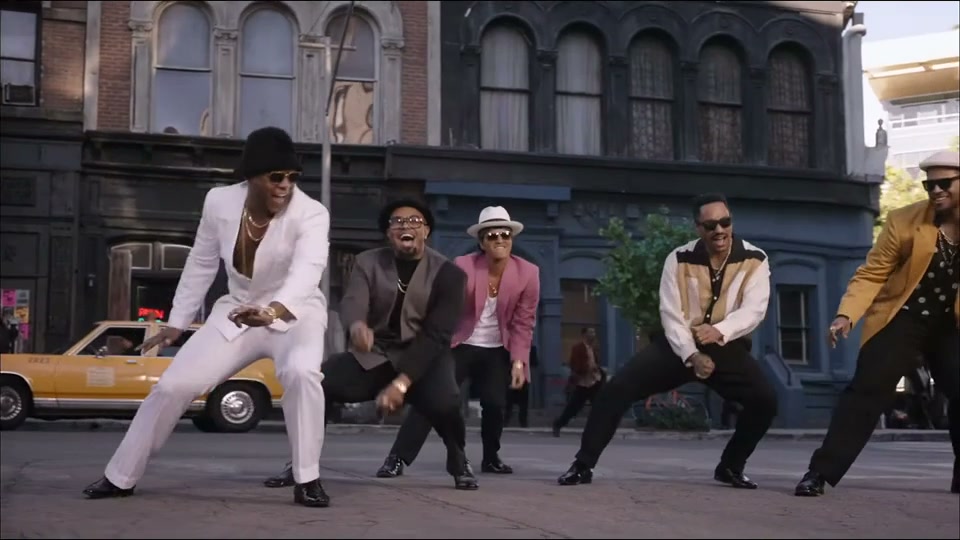
The repeated phrase gives the trend its name. It comes in over a Jersey club beat, so you can recognize the edit even before the performer starts to move.
An early edit by @ristyisvalid dresses several Blue Lock characters in streetwear and cuts between illustrated poses. This template borrows the visual rhythm, but keeps your character in both shots instead of changing who appears.
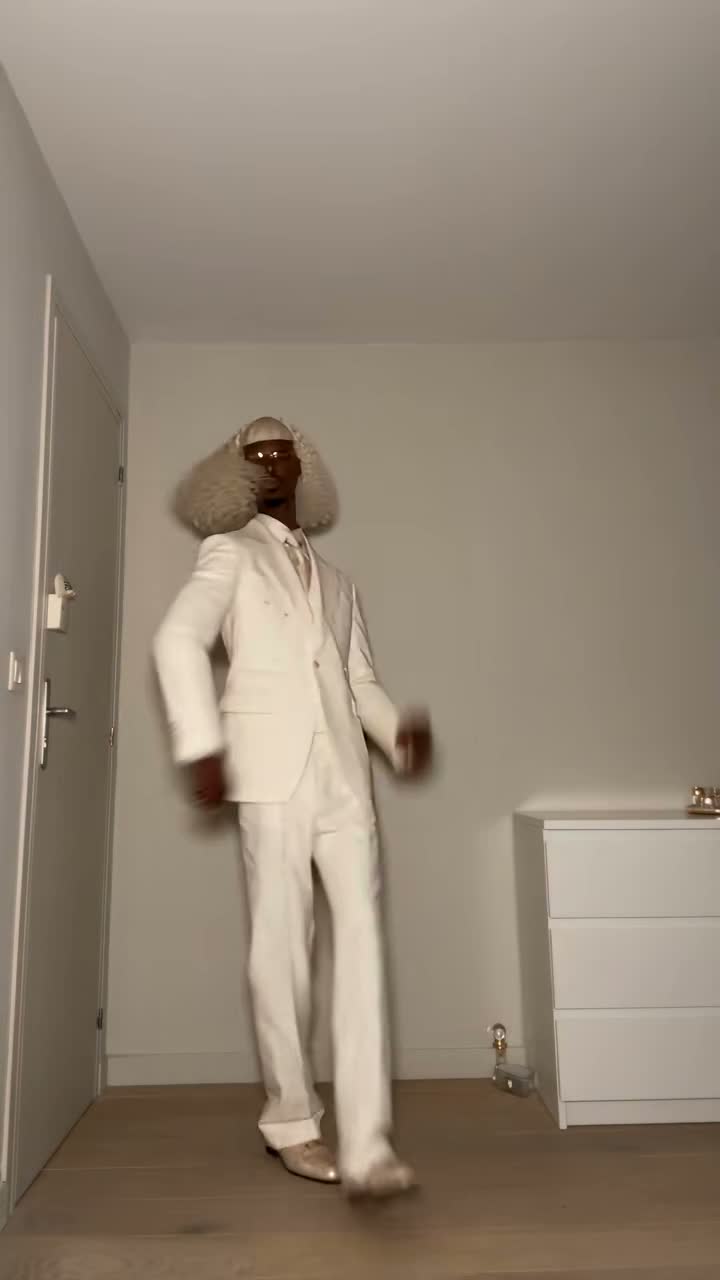
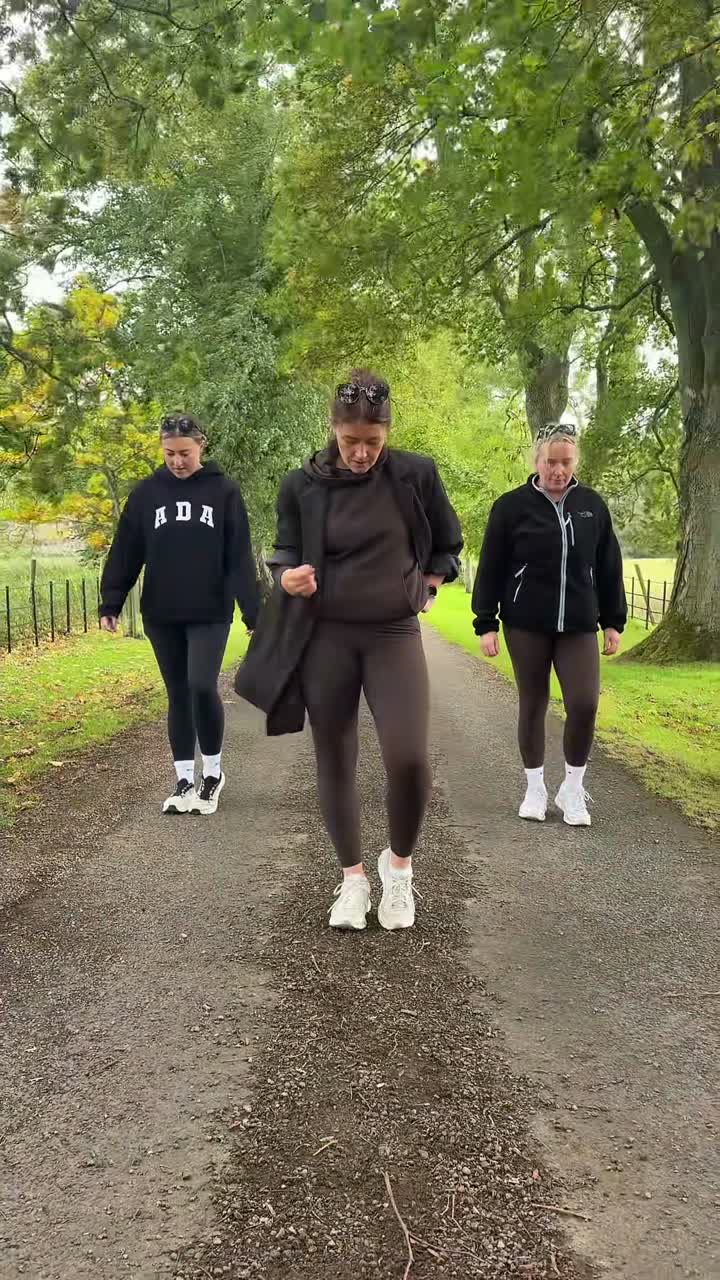
Watch for shoulder rocks, shifts in weight and quick hand accents. A wider view makes those small movements easy to read without the camera having to follow every step.
Upload one portrait or a character illustration. A real person is drawn in anime style rather than made to dance in live action. In this edit, the change is in the outfit and pose, not the identity.
A familiar expression and a clear outline of the hair help the illustrated character look like you. Use even light and choose a photo in which the eyes and face are easy to see.
If the picture contains other faces, signs or mirror reflections, crop around the person you want to animate. The background does not need to match the dance; the photo mainly tells the model who should appear.
A close selfie gives the model facial details but little information about your clothes. Choose a waist-up or full-body shot if you want the shape of a jacket or a particular color combination to carry through.
You can ask for a small clothing change in the prompt editor. Keep the photo and the movement instructions the same for that attempt, so you can tell whether the wording changed the outfit.
Look at the light backdrop, roomy clothes, and small movements: those are the details the outfit cut builds on.
An illustrated streetwear character rocks their shoulders and gestures against a light background.
Generate videoThe 9:16 default fills a phone screen and gives the figure space above the head and below the feet. If you add a caption later, leave the hands and face visible so you can still read the gestures.
Choose 16:9 before generating if the video will sit in a wider edit. The model composes a new frame for that ratio; switching formats is not a crop or a second export of the same render.
The 10-second default gives each outfit time to register before the clip ends. Four seconds can work as a quick reaction insert if you want the contrast between the two looks to appear much sooner.
Within the ten-second limit, give the second outfit enough time to register before the clip ends. Check the final gesture before cutting against another clip or using the video as a loop.
The model creates the two shots from the photo and prompt, with no video to copy. Kuca then adds the selected Jersey club excerpt to the finished picture instead of asking the model to recreate the song.
The prompt aims for one cut around the first beat break, but the model can land a little early or late. Play the two shots with sound on and check whether the transition feels right before sharing.
A good first frame does not tell you whether the face holds up as the shoulders rock or the hands move. Play the middle of the video at normal speed before you inspect a paused frame.
If the movement and the face look right but a clothing detail changes, reuse the photo and settings and adjust just the clothing instruction. That makes the new version easier to compare with the first.
Uploading a photo or reading the instructions does not spend generation credits. A submitted render costs 100 credits. If a task is marked failed, the charge is returned through the normal failure flow. If a task succeeds and you want a different look or length, a new submission is a new render and uses another 100 credits.
Free-account results use Public. Eligible paid accounts can choose Private and download without Kuca’s added watermark. Private controls publication on Kuca, so use care when passing around the file or its direct link. Use a photo you have permission to upload and check the music rights that apply to the way you plan to publish.
Watch the face, hair and clothes through a few beat accents. A good take should still feel like the same subject after a turn or hand movement. If the character drifts, try a sharper picture rather than immediately rewriting every instruction. A different lighting angle or a clearer outline can be easier for the model to interpret.
Download the take you like before making another. Reuse parameters helps compare a small prompt change with the previous result. If the precise platform sound matters, add the licensed recording available on that platform after downloading and align the dance by ear. A generated video does not give you rights to redistribute a commercial recording.
No. Upload one photo and choose a length. The model makes both shots from the image and written instructions, so you do not need to film yourself or submit a dance clip.
This edit has one character. Crop the photo to the person you want to appear. The two shots give that same person different outfits; they do not create a duet.
Kuca adds a short excerpt from the trend’s Jersey club remix after generating the visuals. It is not a new model-generated track or the full song. The placement of the visual cut may vary.
The range is 4 to 10 seconds, with 10 selected by default. The model makes both shots within that time, and the selected music excerpt covers the full clip. Choose a shorter length for a quick outfit change.
A task that is marked failed returns the credits charged for that attempt. A completed video that you would like to revise requires a separate generation.